SecureDrive
Create Encrypted Virtual Disk & Read-Only Secure Drives on Windows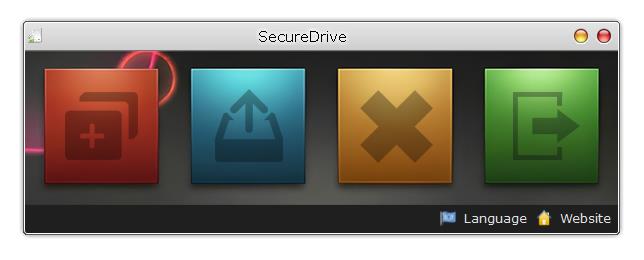

Software Version: 1.0
Software License: Freeware
Size: 4.7 MB
Windows OS: Windows 7, Windows 8, Windows 10, Windows 11 or later & Windows Server
Requirements:64 bit, .Net Framework 4.0
SecureDrive is a lightweight, robust security Wndows utility designed to create a private sanctuary for your sensitive data. By utilizing encrypted virtual volumes that mount directly as standard Windows drive letters, it bridges the gap between high-level security and everyday usability. Whether you are protecting source code, financial records, or personal documents, SecureDrive ensures your files remain invisible to unauthorized users while appearing as a standard, high-performance disk to you.
SecureDrive Highlights
Encrypted Virtual Volumes
Create secure, encrypted container files that act as isolated vaults. Your data remains protected behind industry-standard encryption, ensuring that even if the file is copied, it remains unreadable without proper authorization.
Seamless Windows Integration
Once mounted, the encrypted volume behaves exactly like a physical hard drive or USB stick. You can drag and drop files, run applications directly from the drive, and use standard Windows Explorer shortcuts without any learning curve.
Multi-Volume Support
Create and manage multiple independent encrypted containers. This allows you to categorize your data into different "vaults" (e.g., Work, Personal, Archives), each with its own storage limit and password for granular security control.
Flexible Session Management
Choose how you want to work. SecureDrive can be configured to keep your encrypted drive mounted in the background even after the main application is closed, allowing for uninterrupted workflows. Alternatively, enable "Auto-Dismount on Exit" for maximum security when finishing a session.
Read-Only Protection Mode
Mount your volumes in a dedicated "Read-Only" state. This creates a "look-but-don't-touch" environment that is ideal for viewing sensitive archives. This mode effectively neutralizes the risk of accidental file deletion, unauthorized editing, or encryption-based virus attacks (such as ransomware) from modifying your data.
Stealth & Privacy
Because your data is stored within a single encrypted container, it leaves no footprint on your host operating system's file structure when the drive is dismounted.
Lightweight Performance
Designed for efficiency, SecureDrive handles on-the-fly encryption and decryption with minimal CPU overhead, providing a smooth experience even when handling large files or complex directory structures.


SecureDrive User Guide - How to Use SecureDrive
1. Create a New Virtual Volume
Before you can store data, you need to create an encrypted container file (the "Volume").
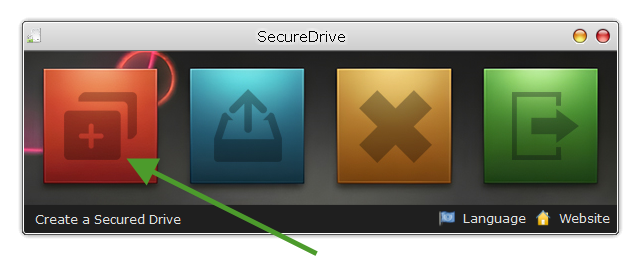
- Launch SecureDrive and click on the "Create a Secured Drive".
- Choose Location: Select a directory on your physical hard drive and give your volume file (SDD format, SecureDriveData) a name (e.g., `PrivateData.sdd`).
- Set Password: Enter a strong password. Note: Since this is a local encryption tool, there is no "Password Recovery"—ensure you keep your password safe.
- Set Capacity: Define the maximum size for this drive (e.g., 5GB or 10GB).
- Choose a Drive Letter: Choose a free drive letter which would be mounted to.
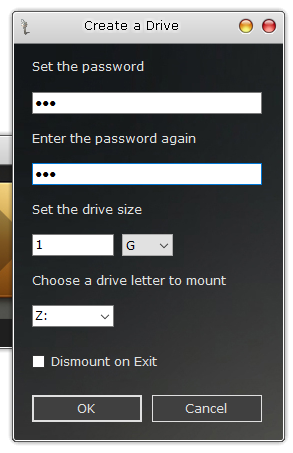
- Finish: Click "OK" Your encrypted container would be created instantly. Once the virtual volume file has been created successfully, it would be mounted to the drive letter you choose automatically.

NOTE: If you set a large virtual partition size, the first creation will take longer, please be patient.
2. Mount a Volume as a Drive
Mounting turns your encrypted file into a visible drive letter in Windows.
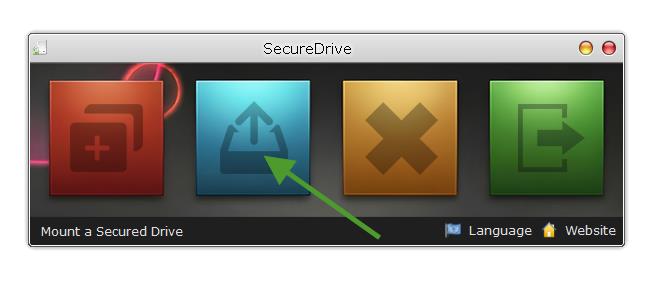
- Select Volume:
Click "Mount a Secured Drive" and browse to your ".sdd" file.
- Enter Password:
Provide the password you set during creation.
- Read-Only Mode:
Check this box if you only need to view files and want to protect them from accidental deletion or virus/ransomware attacks.
- Choose a Drive Letter: Choose a free drive letter which would be mounted to.
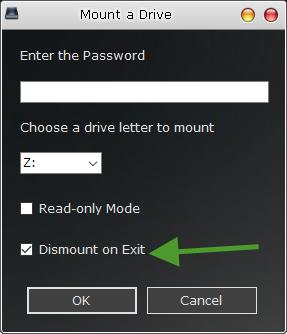
- Dismount on Exit:
Check this box if you want to let SecureDrive dismount the drive when you quit the program.
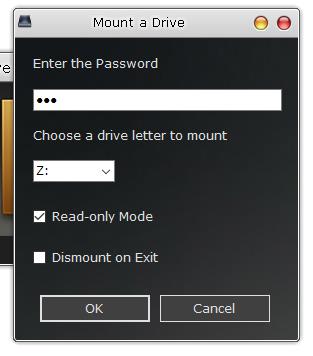
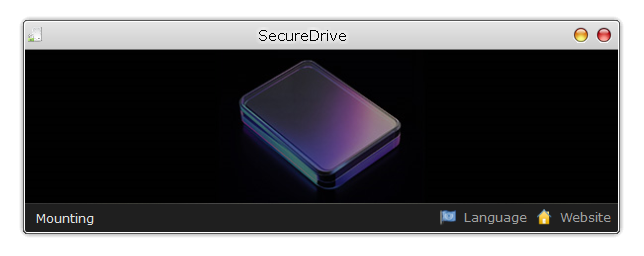
- Mount: Hit the "OK" button. A new drive letter (e.g., `Z:`) will appear in Windows Explorer.
3. Working with Your Data
Once mounted, the volume behaves like any other disk.
- Access:
Open "This PC" or Windows Explorer. You will see your SecureDrive listed under "Devices and drives."
- Manage Files:
Drag and drop files, save documents directly from Word or Excel, or run portable applications from within the drive.
- Multi-Volume:
Repeat the mounting process if you need to open multiple vaults simultaneously; each will receive its own unique drive letter.
4. Configuring Program Exit Behavior
Once mounted, the volume behaves like any other disk.
- Access:
You can customize how the drive behaves when you close the SecureDrive interface.
- Persistent Mounting:
If you want to keep working in the drive but close the SecureDrive window, ensures the "Dismount on Exit" option is not selected when you mount a SDD file.
- Auto-Secure:
If you prefer the drive to lock automatically when you finish your session, make the "Dismount on Exit" option checked when you mount the SDD file..
5. Dismounting (Locking) the Drive
When you are finished with your sensitive data and you do not want the drive to be visible any more, you must "Dismount" to re-encrypt and hide the drive.
- Dismount:
In the SecureDrive dashboard and click "Dismount".

- Choose the Drive Letter:
Select the drive letter to dismount.
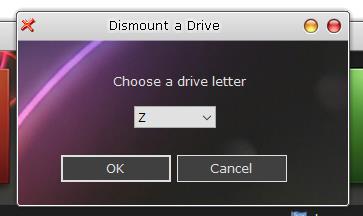
- Confirmation:
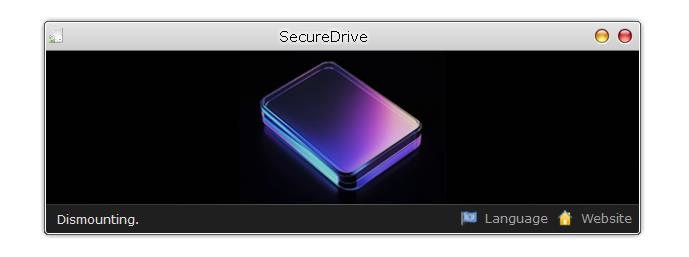
The drive letter will vanish from Windows Explorer, and your data is now securely stored back inside the encrypted container file.
Quick Tips for Best Results
- Virus Protection:
Always use Read-Only Mode when accessing archives on a computer you don't fully trust.
- Backup:
Remember to back up your encrypted container file (the ".sdd" file) to an external drive or cloud storage periodically.
- Performance:
For the best speed, avoid placing the encrypted volume file on a network share; keep it on a local SSD whenever possible.
Features
- - Encrypted Virtual Volumes
- - Seamless Windows Integration
- - Multi-Volume Support
- - Flexible Session Management
- - Read-Only Mode Available
- - Encrypted Virtual Containers
- - Lightweight & Performant
- - Portable version available
- - Multilingual